
Introduction to Microsoft Power Automate in Accounting
What is Microsoft Power Automate?
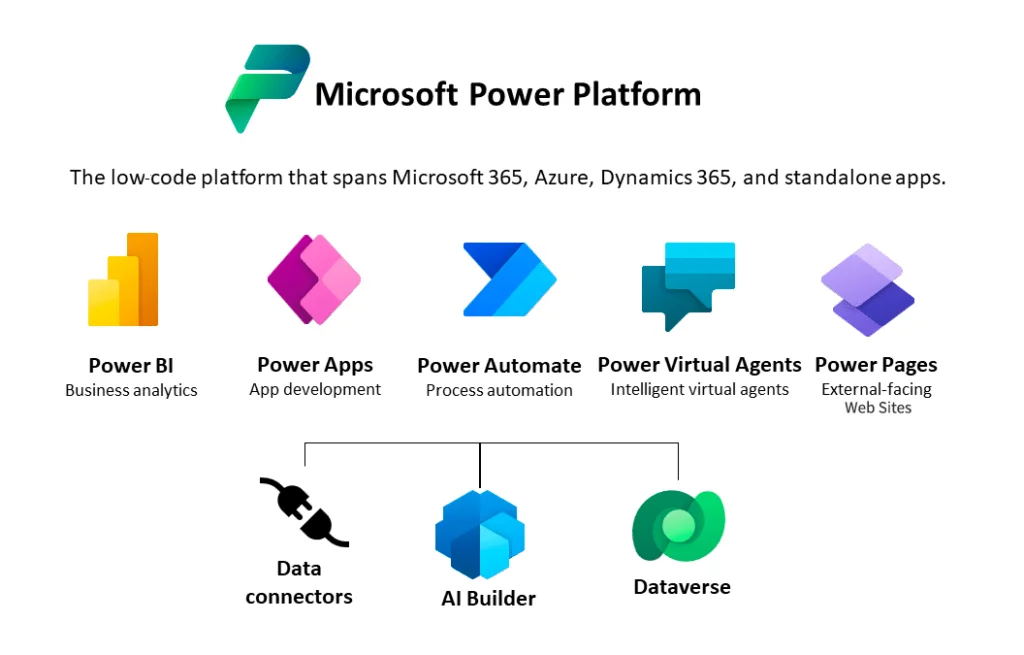
Microsoft Power Automate is a cloud-based service that enables organizations to create automated workflows across various applications and services. It simplifies repetitive tasks, integrating data sources and apps without requiring deep coding knowledge. In accounting, it offers tools to streamline processes like invoice processing, approval routing, and data entry.
Why Automate Invoice Processing?
Traditional invoice processing involves manual data entry, approval workflows, and auditing, which can be cumbersome and time-consuming. These pain points slow down accounting operations, increase errors, and delay payments. Automating these tasks reduces human error, accelerates processing times, and boosts overall efficiency.
Setting Up Power Automate for Invoice Processing
Prerequisites and Tools Required
Before starting, ensure you use a supported browser—Microsoft Edge is recommended for the latest features and security updates. Signing in to Power Automate with proper authorization is essential to access all functionalities. Familiarity with SharePoint, Excel, or your accounting software enhances integration capabilities.
Connecting Power Automate to Accounting Software
Power Automate offers built-in connectors to over 400 applications, including popular accounting systems and email platforms. You can link your invoice storage locations, such as SharePoint folders or email inboxes, directly to Power Automate. This connection enables seamless data flow from invoice receipt to final posting into your accounting software.
Step-by-Step Guide to Creating an Invoice Automation Workflow
Triggering Invoice Capture
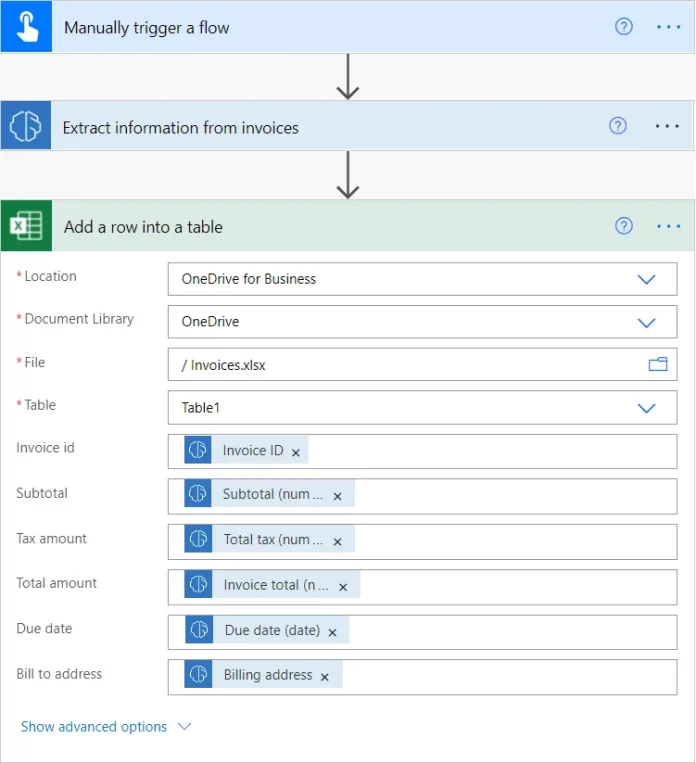
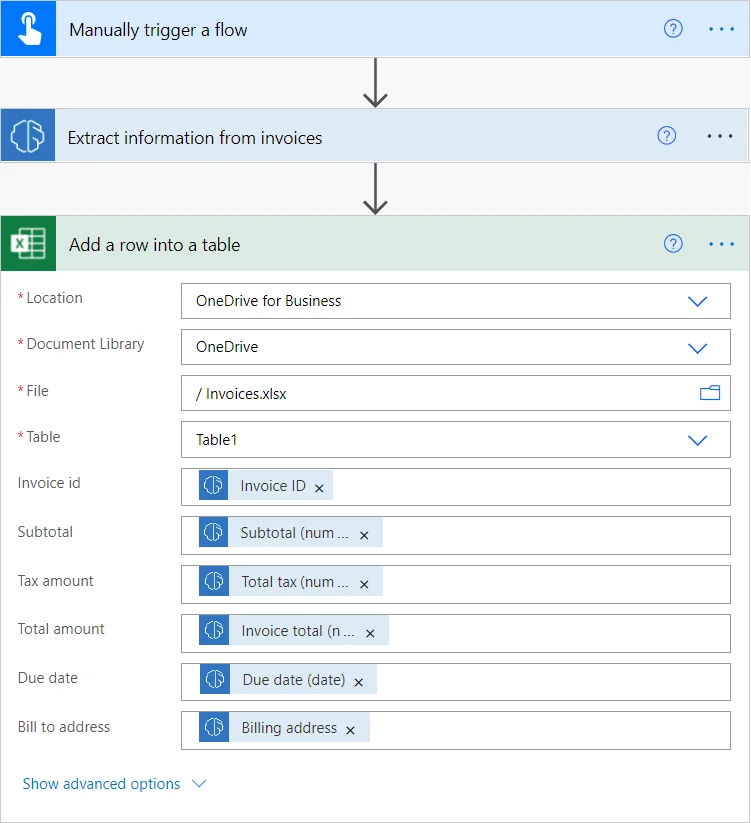
Begin by creating a new instant cloud flow in Power Automate. Use the “Manually trigger a flow” action with a file input to specify invoice files. This setup initiates the workflow when an invoice file is added or uploaded, ensuring prompt capture of incoming documents.
Automated Data Extraction from Invoices
Utilize the AI Builder’s prebuilt invoice processing model to automatically extract key information such as invoice number, date, and total amount. This model requires no prior training or customization, making it accessible for immediate use. When processing large documents, specify page ranges carefully to isolate individual invoices, optimizing performance and cost.
Validation and Error Handling
Incorporate checks within your flow to validate extracted data, such as verifying totals or matching vendor details. Handle errors by configuring fallback actions, like sending notifications if data extraction fails or if invoice parameters are out of expected ranges. This reduces workflow disruptions and ensures data integrity.
Approval Workflow Integration
Set up automated approval steps for invoices exceeding a certain amount, commonly $2,000. Power Automate allows routing approval requests to designated personnel via email or Microsoft Teams. This expedites decision-making and maintains accountability within the payment process.
Finalizing and Storing Invoice Data
Once approved, save the extracted invoice data into your accounting system or databases like Excel and SAP. Employ Robotic Process Automation (RPA) with Power Automate Desktop to handle legacy applications that lack modern integration options. Notifications can be sent post-processing to keep stakeholders informed.
Benefits of Automating Invoice Processing Using Power Automate
Increased Efficiency and Accuracy
Automation eliminates manual entry errors and accelerates data processing. AI-powered extraction quickly identifies relevant details, reducing time spent on invoice handling and improving accuracy.
Cost Reduction and Time Savings
By streamlining workflows, organizations minimize labor costs and shorten payment cycles. Specifying page ranges when processing multi-invoice documents lowers processing costs and enhances scalability.
Improved Compliance and Audit Trails
Automated workflows create detailed logs of invoice handling and approvals. This improves compliance with internal policies and regulatory requirements by providing transparent audit trails.
Advanced Tips and Best Practices
Optimizing Workflow Performance
When working with multi-page invoices, use the Pages parameter to specify exact page ranges containing single invoices. This prevents overlapping data extraction and boosts performance. Always ensure page ranges correspond to unique invoices to avoid errors.
Securing Financial Data
Protect sensitive information by leveraging secure authentication in Power Automate and restricting access to authorized users. Use encryption and compliance features provided by Microsoft to safeguard confidential accounting data.
Integrating AI and OCR Capabilities
Leverage the prebuilt AI Builder Invoice Processing model for quick setup without training. For specialized invoice formats, build custom form processing models tailored to your business needs. Utilizing Optical Character Recognition (OCR) improves data capture from scanned or image-based invoices.
Case Studies: Real-world Success with Invoice Automation
Small Business Use Cases
Small businesses benefit from automated invoice processing by reducing administrative burden. Automating data extraction from emailed invoices and linking them to Excel sheets simplifies accounting and cash flow management without requiring extensive IT investment.
Enterprise Implementation Examples
Enterprises leverage Power Automate’s connectivity and RPA to integrate complex legacy systems with modern workflows. Automated approval routing and SAP data storage allow high-volume invoice handling with enhanced control and real-time monitoring.
Conclusion: Transforming Accounting with Power Automate
Using Microsoft Power Automate for invoice processing transforms accounting by increasing accuracy, reducing costs, and speeding workflows. Its AI-driven extraction, flexible integrations, and automation capabilities empower organizations to overcome traditional invoice processing challenges. Adopting these technologies enables accounting teams to focus on strategic tasks and grow business value efficiently.


