Understanding Zigbee and Z-Wave Protocols
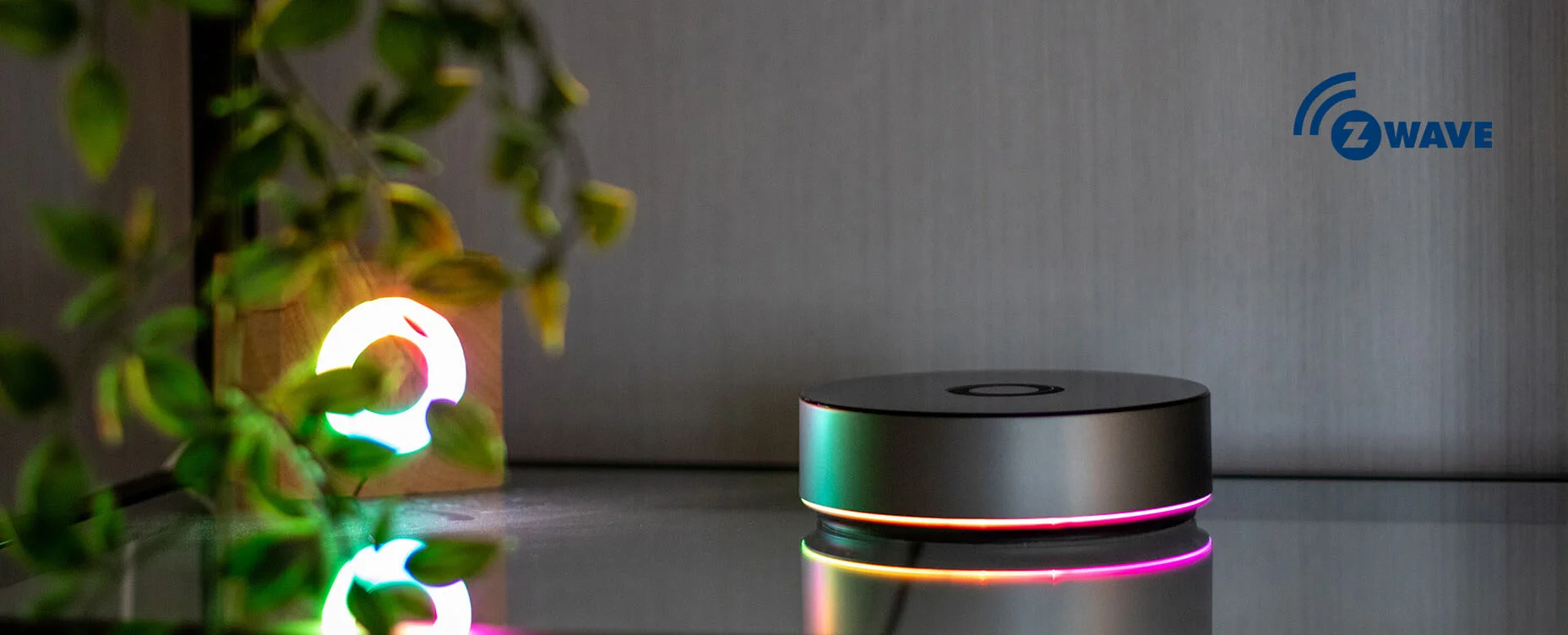
Zigbee and Z-Wave are two widely-used wireless communication protocols that form the backbone of many home automation systems. Both are designed to allow smart devices like lights, sensors, and locks to talk to each other and a central hub without relying on Wi-Fi. Understanding how these protocols operate and their differences is essential for successfully troubleshooting connectivity issues.
Key Differences Between Zigbee and Z-Wave
Zigbee operates on the 2.4 GHz frequency, which is shared with Wi-Fi and many other household devices, potentially leading to interference. In contrast, Z-Wave uses a lower frequency band (typically around 900 MHz), which tends to have less interference and better range in typical home environments. Another major difference is device compatibility; Zigbee devices from different manufacturers often interoperate more freely, while Z-Wave devices require certification to ensure consistent communication.
Additionally, Zigbee networks can support thousands of devices, making them ideal for larger setups, whereas Z-Wave networks are typically limited to around 232 devices. Knowing these distinctions can help diagnose why certain devices might struggle to maintain stable connections or why some protocols handle device congestion differently.
How These Protocols Handle Connectivity
Both Zigbee and Z-Wave rely on mesh networking, where devices can relay signals to extend the network range. This means devices not directly near the hub can still communicate by passing messages through nearby compatible devices. Mesh networks improve coverage but also require proper routing and regular updates to keep the network stable. If nodes fail to update routes or lose connection, the whole mesh can become unstable, affecting device responsiveness.
Understanding mesh behavior is crucial when troubleshooting, because problems like weak batteries, long distances, or interference can disrupt these communication pathways. Proper maintenance and optimization of the mesh are key to preserving connectivity.
Identifying Common Connectivity Problems
Signal Interference and Range Limitations
One of the most frequent causes of connectivity problems is signal interference. For Zigbee, the 2.4 GHz band is crowded with devices such as Wi-Fi routers, microwaves, and Bluetooth gadgets, all of which can degrade signal quality. Z-Wave, although less susceptible, can still be affected by physical barriers like walls and metal objects that weaken the radio signal.
Distance is another critical factor. Devices placed far from the hub or without intermediate devices to relay messages will experience poor connectivity. For example, a Z-Wave smart lock installed in a workshop far from the house might suffer from frequent disconnections and excessive battery drain due to repeated failed connection attempts.
Device Compatibility Issues
Not all Zigbee and Z-Wave devices are created equal. Sometimes, devices are incompatible with the network hub or with each other. Using a controller that doesn’t fully support a device’s protocol version or features can lead to erratic behavior. Additionally, firmware mismatches between devices and hubs can contribute to communication failures.
In some cases, smart locks or sensors require specific handling during network repair procedures. Ignoring these nuances can cause routes or the mesh information to fail updating, leading to further connectivity problems.
Network Congestion and Overloading
Networks that include too many devices without proper segmentation can experience congestion. Both Zigbee and Z-Wave networks have device limits—for instance, keeping the number of devices under 25 per network helps maintain stability. Overloading a single mesh can cause delays, dropped messages, or even cause the entire network to become unstable.
Furthermore, placing all devices on a single network instead of using dedicated subnetworks for critical devices may increase interference and reduce reliability. This is especially true in busy environments where many automation routines run simultaneously.
Step-by-Step Troubleshooting Guide
Checking Device and Hub Firmware
The first step in diagnosing connectivity problems is ensuring that all devices and the central hub have the latest firmware installed. Firmware updates fix bugs, improve device stability, and add better handling of network protocols. Many connectivity issues stem from outdated software that struggles to communicate efficiently with newer or updated components.
Always check manufacturer websites or the smart home app for available updates and apply them carefully. If devices don’t update automatically, manual intervention may be necessary.
Performing Network Resets and Reboots
When devices behave erratically or lose connection, a simple network reset or reboot often helps. Rebooting the hub refreshes its network table and can resolve temporary glitches. Similarly, restarting affected devices restores their ability to connect properly.
For Z-Wave networks, running a network repair is particularly important. This process forces devices to update their routing tables and mesh information, potentially resolving route failures that prevent devices from communicating effectively.
Repositioning Devices for Better Signal
Physical placement profoundly affects wireless performance. If a device experiences weak signal, try moving it closer to the hub or place signal range extenders strategically between devices to ensure clear line-of-sight. Extenders should not be placed behind thick walls or metal appliances, as this can reduce their effectiveness.
Testing devices closer to the hub can help confirm whether signal strength or interference is the core issue. Gradually relocate devices and extenders to optimize the mesh network coverage and improve overall connectivity.
Advanced Troubleshooting Techniques
Using Network Analyzers and Diagnostic Tools
For persistent issues, network analyzers and specialized diagnostic software provide detailed insights into signal strength, interference, network traffic, and routing paths. Tools such as the SmartThings IDE offer device status monitoring, enabling homeowners to observe connectivity and troubleshoot problematic nodes systematically.
These tools can reveal if devices fail to update mesh information during repairs or identify interference sources that manual inspection might miss. Using diagnostic data allows for precise adjustments instead of guesswork.
Firmware Updates and Custom Configuration
Beyond standard updates, some devices benefit from custom configurations or advanced settings adjustments. Manufacturers may release beta firmware or specific patches for known issues. Additionally, advanced users can sometimes alter network parameters like retry intervals or signal power to improve performance under challenging conditions.
However, such customizations require a solid understanding of the system to avoid causing further instability. It’s advisable to perform these steps incrementally, testing the network thoroughly after each change.
Preventative Measures for Future Connectivity Stability
Optimal Network Design Tips
Stable connectivity begins with good network design. Placing routers and hubs centrally and elevated helps distribute signals evenly. Avoid placing them near metal objects, floors, or corners, as these locations can cause signal reflections or dead zones.
Regularly scheduling network healing or repair (ideally monthly) helps maintain updated mesh routes, preventing stale or lost connections. Limiting the number of devices per network and using dedicated networks for critical devices reduces congestion, improving performance across the board.
Choosing Devices for Maximum Compatibility
Selecting devices that are certified for your specific hub or protocol version minimizes compatibility headaches. High-quality devices with robust batteries reduce the likelihood of connection failures due to power issues. Always verify battery health and environmental factors such as exposure to drafts or extreme temperatures, which can affect sensors and locks.
Keeping all firmware current, monitoring battery levels regularly, and understanding the smart home system architecture empower users to pre-empt common pitfalls. Careful planning, patience, and methodical testing when adding new devices or extenders ensure long-term network reliability and smoother home automation experiences.