
Introduction to Automating Excel Tasks with Power Automate Desktop
Why Automate Repetitive Excel Tasks?
Repetitive tasks in Excel consume valuable time and often lead to errors. Automating these activities improves accuracy and frees up resources for more strategic work. Whether it’s updating spreadsheets, generating reports, or consolidating data, automation simplifies the process and enhances productivity.
Overview of Power Automate Desktop Capabilities
Power Automate Desktop enables users to automate Excel tasks without extensive coding knowledge. It supports launching Excel, manipulating data, interacting with other applications, and handling complex workflows. Its integration with Microsoft 365 tools expands automation possibilities, making it a versatile solution for business users.
Getting Started: Setting Up Power Automate Desktop for Excel Automation
Installation and Configuration Steps
Setting up Power Automate Desktop begins with downloading the installer from the official Microsoft website. After installation, users sign in with their Microsoft 365 credentials. Configuration involves granting appropriate permissions and selecting the default environment to ensure smooth flow creation and execution within Excel.
Connecting Power Automate Desktop to Excel
To link Power Automate Desktop with Excel, open Excel on Windows and enable the Power Automate pane. This pane allows you to create and manage automation flows directly inside your Excel workbook. Note that the Power Automate pane is not available on Mac, so Windows or Excel for the web is required for full functionality.
Key Features to Use for Excel Automation
Launch and Control Excel Actions
Power Automate Desktop lets you launch Excel, open specific workbooks, and control application behavior such as saving or closing files. These actions form the foundation for building automation workflows that interact with your Excel data seamlessly.
Data Extraction and Manipulation Techniques
Automation flows can extract values from cells, write data back to spreadsheets, and perform calculations. By using the Excel connector, users can read dynamic ranges and adjust content, enabling real-time updates without manual intervention.
Working with Loops and Conditional Logic
Loops help automate repetitive steps across rows or columns efficiently, while conditional logic allows decision-making within flows. Combining these features enables customized workflows that respond to data changes, enhancing flexibility and control.
Step-by-Step Guide: Creating Your First Excel Automation Flow
Identifying the Repetitive Task
Begin by pinpointing a task you perform repeatedly in Excel, such as formatting reports or consolidating data. Understanding each step involved will help you design an effective automation flow tailored to your needs.
Building the Flow in Power Automate Desktop
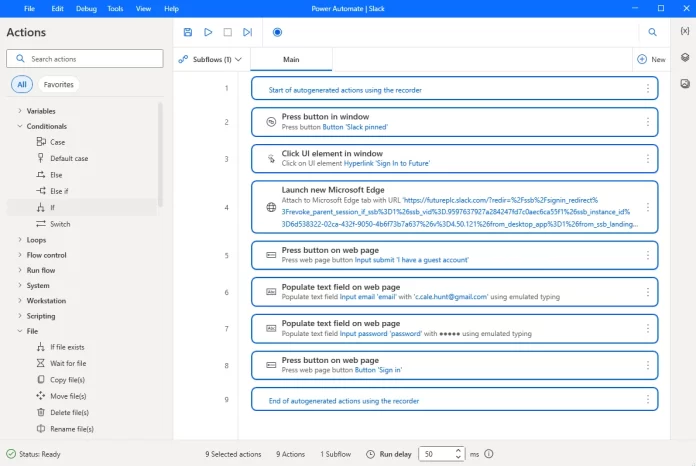
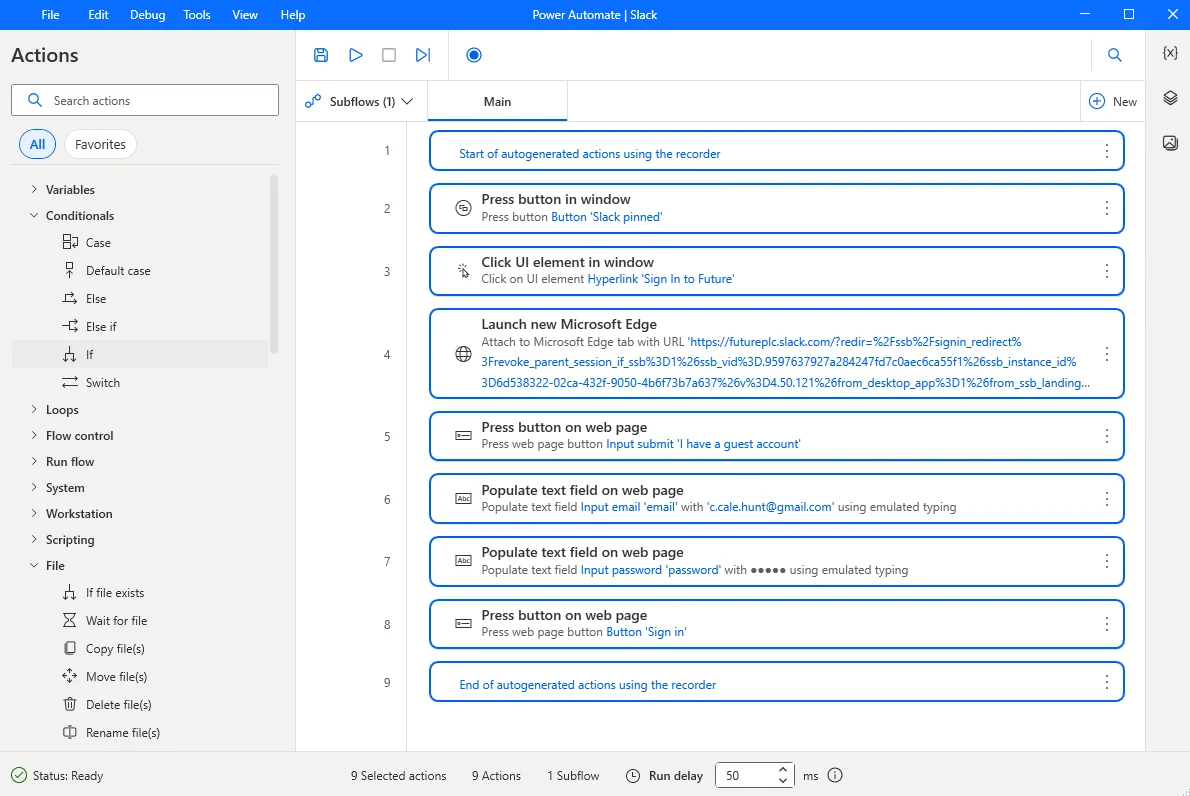
In the Power Automate Desktop interface, start by creating a new flow. Use Excel actions to open your workbook, manipulate data according to the task’s requirements, and save changes. Start with prebuilt templates if available, then customize them to fit your specific workbook.
Testing and Troubleshooting Your Automation
Test the automation flow on sample data to verify its accuracy. Monitor for errors in each step and use the debugging tools in Power Automate Desktop to resolve issues. Pay attention to environment and authorization settings to avoid common pitfalls.
Advanced Automation Tips for Excel Power Users
Integrating with Other Microsoft 365 Tools
Connecting Excel automation to apps like SharePoint, Teams, and Planner expands collaboration and data sharing abilities. For instance, flows can automatically update SharePoint lists or notify teams via Teams when Excel data changes, streamlining workflows across platforms.
Using Variables and Error Handling
Variables store temporary data during flow execution, improving flexibility in dynamic scenarios. Incorporating error handling helps catch unexpected failures and take corrective actions, ensuring smoother automation and reducing downtime.
Automating Complex Data Processing Tasks
Power Automate Desktop can handle advanced tasks such as merging multiple spreadsheets, generating pivot tables, or applying conditional formatting based on data analysis. Combining loops, conditionals, and connector actions enables automation of sophisticated Excel workflows.
Common Challenges and How to Overcome Them
Handling Dynamic Excel Data Ranges
Data ranges in Excel files often change size, which can disrupt automation flows. Use dynamic range selectors or apply filters to target only relevant data. Testing your flows on varying data sizes prevents errors and ensures consistent results.
Dealing with File Permissions and Access Issues
Authorization issues arise if users lack proper access or if Conditional Access policies are misconfigured. Ensure flows are created in the default environment to be fully accessible from Excel. Align Conditional Access policies between Excel and Power Automate to avoid authentication errors, and include Microsoft Flow Service when targeting individual apps.
Conclusion: Boosting Productivity by Automating Excel with Power Automate Desktop
Automating repetitive Excel tasks using Power Automate Desktop saves time, reduces errors, and enhances efficiency. Starting with simple flows and scaling to complex integrations with Microsoft 365 tools empowers users to optimize their workflows. Careful setup and attention to common challenges ensure reliable automation that transforms how you work with Excel.


