
Introduction to Benchmarking Software
What is Benchmarking and Why It Matters
Benchmarking software plays a crucial role in accurately testing the performance of your PC’s hardware. The core problem many users face is not knowing how well their system actually handles various workloads. Performance can differ significantly depending on the specific tasks your hardware is subjected to, such as gaming, video editing, or AI processing. By measuring and comparing your computer’s capabilities under controlled conditions, benchmarking provides a clear snapshot of system strength and weaknesses. This helps you make informed decisions, whether upgrading components or optimizing usage patterns.
Types of Benchmarking Software Available
Another challenge in performance testing is choosing the right tools. Various benchmarking software exist, each designed to stress different system components. For example, PCMark 10 and the Procyon Office Productivity Benchmark focus on general productivity applications, while 3DMark targets gaming and graphical performance. Geekbench 6 offers a quick overview of CPU power and system configuration, and AI-Benchmark evaluates AI and deep learning capabilities. Knowing the correct benchmark for your intended workload is essential to get meaningful results. Using irrelevant or outdated benchmarks can lead to misleading conclusions about your system’s real-world abilities.
Preparing Your PC for Accurate Benchmarking
System Optimization Steps Before Testing
Achieving precise benchmark results requires thorough system preparation. One common issue is running other programs in the background during tests, which can skew results and reduce reliability. Ensuring all unnecessary applications are closed allows the benchmark to fully utilize available resources and generate accurate performance data. Additionally, having sufficient memory capacity is vital. Systems with inadequate RAM often resort to page files or scratch disks for temporary storage, drastically slowing down operations. For serious testing, especially on workstation-class PCs, boosting memory to 64GB or more is recommended. Using high-frequency memory kits, such as those running at 7200MT/s, can further enhance performance and the fidelity of your results.
Common Pitfalls to Avoid During Benchmarking
Many users fall into traps that undermine benchmarking accuracy. A frequent mistake is assuming a single PC setup excels at all tasks without considering workload diversity. Each task stresses components like the CPU, GPU, memory, or storage differently, so one benchmark cannot represent comprehensive performance. Another major pitfall is conducting tests while background processes or other applications consume resources, which corrupts the performance data. Also, neglecting memory speed and capacity impact leads to underperforming systems during tests. Avoiding these pitfalls by understanding their causes ensures your benchmarking delivers trustworthy insights.
Step-by-Step Guide to Using Benchmarking Software
Selecting the Right Software for Your Hardware
Start by identifying the key components in your PC and their intended use. If your focus is general office productivity, PCMark 10 and Procyon Office Productivity Benchmark are well-suited tools that mimic real-world application demands. Gamers should lean towards 3DMark, which tests graphical and rendering capabilities. Those who need a rapid overview of CPU readiness will find Geekbench 6 helpful. For users with AI workloads, AI-Benchmark provides specialized tests tailored to deep learning tasks. Selecting the correct benchmarking tool avoids wasted effort and yields actionable data relevant to your specific hardware and use cases.
Running Benchmarks: CPU, GPU, and Storage Tests
Begin by closing all non-essential programs to ensure the benchmarks can allocate maximum system resources. Launch the benchmark and choose tests that stress individual components such as the CPU, GPU, or storage drives. For CPU tests, focus on multi-threaded workloads that replicate real application demands. GPU tests often involve 3D rendering or gaming simulations to measure frame rates and shader performance. Storage benchmarks evaluate read/write speeds and latency, crucial for workloads involving large file transfers. Running these tests comprehensively highlights bottlenecks and areas needing improvement. Further, running multiple benchmarking sessions helps verify consistency of results.
Interpreting Benchmark Results for Performance Insights
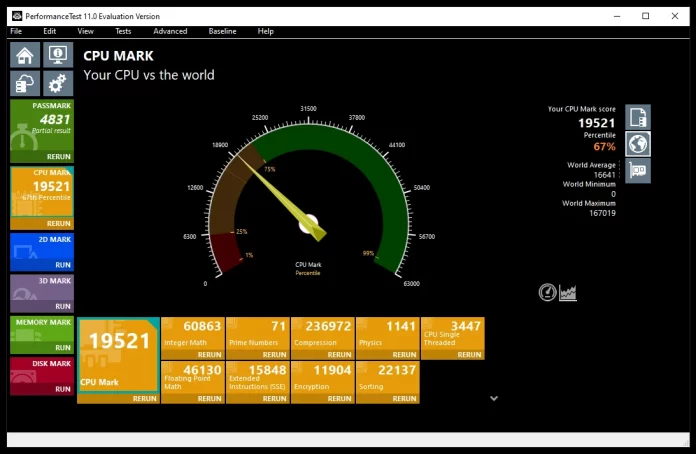
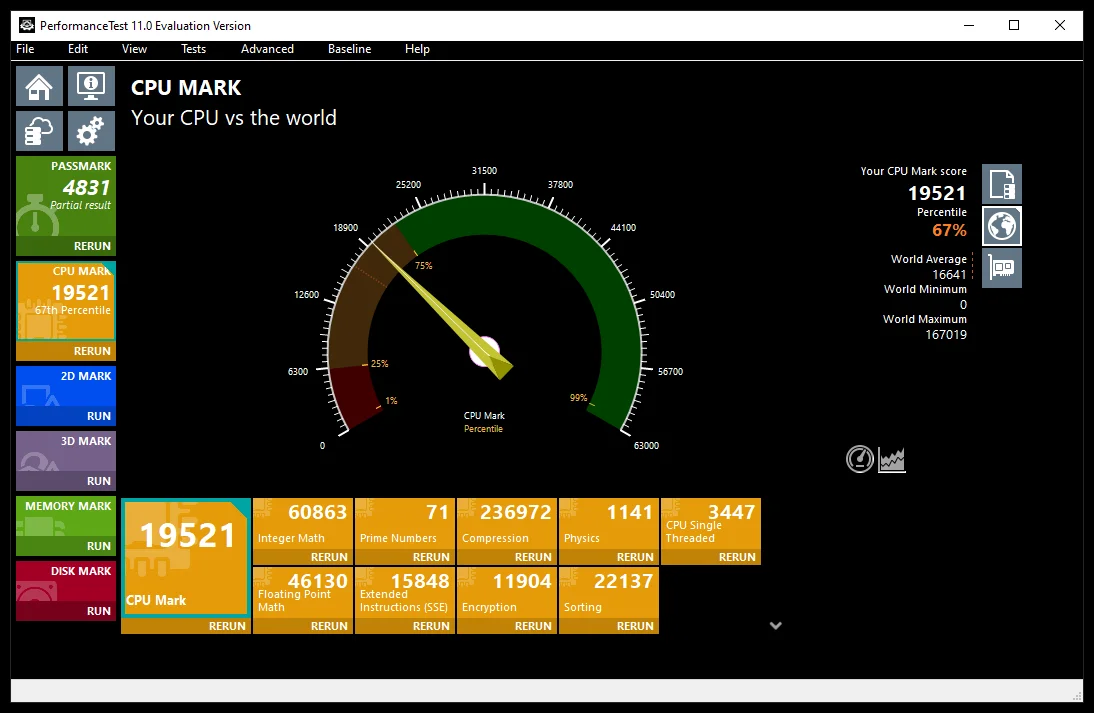
Once the tests complete, the challenge becomes understanding what the numbers mean for your everyday usage. Benchmark scores translate raw hardware power into quantifiable performance metrics. High scores in CPU and GPU tests indicate strong computational and graphical capability, but low memory throughput or slow storage speeds can dampen overall experience. Identifying patterns such as CPU throttling or insufficient RAM usage guides effective upgrades. Moreover, combining benchmark data with your actual workload requirements ensures that system improvements are prioritized toward the tasks that matter most.
Comparing Your Results
Using Online Databases for Reference Scores
Benchmark results are most meaningful when compared against standardized databases. Platforms such as the Geekbench Browser allow you to upload your scores and contrast them with scores from other similar setups. This comparison reveals where your system stands in relation to typical performance ranges for your CPU or GPU model. Without this context, raw benchmark numbers can be difficult to interpret. Online databases also help detect unusual performance dips, which might suggest hardware issues or configuration problems that merit investigation.
How to Recognize Performance Bottlenecks
Recognizing bottlenecks starts with examining which component scores deviate most from expected norms. For example, if your CPU performs well but your storage benchmarks lag, slow disk access may throttle the entire system. Conversely, insufficient memory causing frequent paging will dramatically reduce throughput, regardless of fast CPU or GPU scores. Careful analysis of individual component results helps pinpoint areas restricting performance, enabling targeted upgrades such as adding RAM, swapping to faster SSDs, or upgrading the GPU for graphics-heavy workloads.
Advanced Techniques for Benchmarking Enthusiasts
Customizing Tests for Specific Hardware Components
For enthusiasts seeking deeper insight, customizing benchmark parameters can reveal detailed hardware characteristics. Some benchmarking tools allow you to modify test loads, duration, and thread count to simulate your exact use case. Targeting specific components with tailored workloads uncovers subtle performance variations and stress behavior, such as thermal throttling or power limits. This granular approach empowers users to fine-tune system configurations and verify stability under specialized conditions not covered by generic tests.
Overclocking and Its Impact on Benchmark Scores
Overclocking can significantly raise benchmark scores by pushing CPUs, GPUs, or memory beyond stock speeds. However, it presents challenges that may compromise consistency and system longevity. Overclocked systems can achieve higher test results but may also suffer from instability or thermal throttling if cooling is inadequate. It’s essential to benchmark before and after overclocking, monitoring for any unusual score fluctuations or crash occurrences. When done carefully, overclocking provides a performance boost visible in benchmarks, but it requires a balanced approach to avoid damaging hardware.
Conclusion
Maximizing Your PC’s Potential with Benchmarking Software
Effective use of benchmarking software helps you uncover your PC’s real capabilities and limitations, enabling smarter decisions about hardware upgrades and optimization. Accurately testing your system requires selecting appropriate, workload-relevant benchmarks, preparing your PC properly by minimizing background activity and ensuring ample memory, and interpreting results within a meaningful comparison framework. Avoiding common mistakes such as using irrelevant tests or insufficient memory prevents misleading findings. For enthusiasts, advanced techniques like customized testing and careful overclocking can push system performance further while validating stability. Ultimately, benchmarking transforms hardware data into actionable insights, helping you maximize your PC’s potential for the tasks that matter most.


