
Introduction to Dark Mode in Vue.js
What is Dark Mode and Why it Matters
Dark mode is a popular user interface option that switches the color scheme of an application to darker tones, typically black or dark gray backgrounds paired with lighter text. It reduces glare and blue light exposure, which can be particularly helpful in low-light environments or during nighttime use. Integrating dark mode has quickly become a standard expectation among users as it helps minimize eye strain and improve readability.
In web applications built with Vue.js, incorporating dark mode is not only a design trend but also a necessary step for enhancing overall accessibility and comfort. Beyond aesthetics, dark mode addresses user preferences and system settings, making your app feel more personalized and modern.
Benefits of Adding Dark Mode to Your Vue.js App
Adding dark mode to your Vue.js app brings multiple benefits. Firstly, it significantly enhances the user experience by providing a comfortable viewing option that eases eye fatigue, especially during extended usage sessions. Users in low-light conditions or those who prefer darker backgrounds will appreciate the flexibility of toggling between themes.
Secondly, many users’ systems now support dark and light preferences, and aligning your app with these system settings respects user choice and increases engagement. Furthermore, dark themes often contribute to better battery efficiency on OLED screens, indirectly boosting the app’s appeal.
Lastly, offering dark mode helps your Vue.js application stay competitive and visually appealing in an industry where users expect theme personalization as a baseline feature.
Preparation Before Implementation
Setting Up Your Vue.js Project Environment
Before diving into the implementation of dark mode, it’s important to have your Vue.js environment properly set up. Using the Vite.js build tool is highly recommended due to its simplicity and fast development experience. With Vite, initializing a new Vue 3 project can be done quickly using the command npm init @vitejs/app . followed by installing dependencies and starting the dev server.
Ensure Node.js and a text editor like Visual Studio Code are installed for efficient coding and testing. These foundational steps create a smooth workflow, enabling you to focus solely on the dark mode features without environment interruptions.
Tools and Libraries to Consider
While Vue.js offers core capabilities for reactivity and component management, certain libraries enhance dark mode implementation considerably. The @vueuse/core library, for instance, provides composables like useDark and useToggle, which simplify managing theme states and persisting preferences.
These composables handle the underlying logic of checking system preferences, toggling themes, and saving choices to localStorage or sessionStorage with minimal setup. Additionally, using CSS custom properties combined with Vue’s reactive capabilities establishes a clean and maintainable separation of concerns between style and logic.
Step 1: Creating the Dark Mode Toggle
Designing the Toggle Button Component
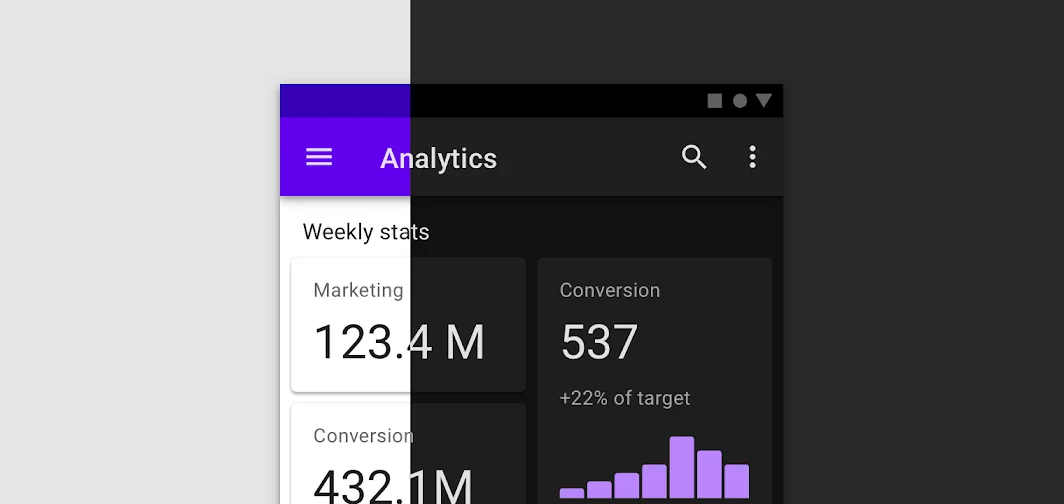
The first step in your dark mode implementation involves creating a toggle button that users can interact with to switch themes. Designing this toggle as a reusable Vue component offers modularity and reusability. Typically, the toggle can be implemented as a styled checkbox that resembles a switch, enhancing user intuitiveness.
Use CSS variables for sizing and colors to keep the toggle flexible and easy to customize. Properly linking the label and input element via matching for and id attributes ensures accessibility and smooth click interactions, letting users toggle the theme seamlessly.
Managing Toggle State with Vue’s Reactivity System
To manage the toggle state, Vue 3’s Composition API provides an elegant approach. You can use a reactive reference, for instance isDarkMode, to track whether dark mode is active or not. This reactive state can then control the CSS classes or attributes applied to the root document element.

Using the useDark composable from VueUse is even more convenient, as it abstracts state tracking and persistence through localStorage by default. By toggling this reactive state, the UI updates reactively, providing instantaneous visual feedback upon user interaction.
Step 2: Defining Dark Mode Styles
Using CSS Variables for Theme Customization
To efficiently manage the visual differences between light and dark modes, defining CSS custom properties (variables) is essential. These variables represent colors, backgrounds, text shades, and other style aspects. By placing them in the :root selector for default light mode and overriding them within a specific dark mode class (e.g., .dark-mode), you centralize style changes.
This approach maintains a clear separation between logic and styling, making it easier to update themes or add new ones. It also enhances maintainability, as changing a color value in one place updates it across the entire application.
Organizing Styles for Light and Dark Themes
Organize your CSS so that light mode styles apply globally or under :root and dark mode styles apply only when the dark mode class is present on a parent element, typically the html or body. This logical structure prevents duplication and ensures smooth toggling.
For example, define base colors and sizes in :root, and override only the necessary variables in the dark mode block. This way, you keep your CSS clean and scalable. Also, consider copying and adapting styles from specialized components like ThemeButton.vue to maintain consistency.
Step 3: Applying Themes Dynamically
Binding Classes or Styles Conditionally in Vue
To apply themes dynamically based on the toggle state, use Vue’s dynamic class binding. When the dark mode state is active, a dark mode class such as dark-mode should be added to the root document element. This triggers the CSS variable overrides you defined earlier.
In Vue.js, this can be done with simple syntax like :class="{ 'dark-mode': isDarkMode }". This reactive binding ensures that when the toggle changes, the visual appearance updates instantly without page reloads or manual style manipulation.
Persisting User Preference with Local Storage
Persisting the user’s theme choice is crucial to prevent resets on page reload or app restarts. Use localStorage to save the current theme setting whenever the user toggles mode. On component mount, restore this setting by checking localStorage before applying the theme.
The useDark composable simplifies this by internally managing persistence, but if manually implemented, saving and retrieving the preference ensures a seamless experience. Additionally, fallback to system color scheme using window.matchMedia enhances initial theme selection.
Step 4: Enhancing User Experience
Adding Smooth Transitions Between Themes
Visual polish is important for a pleasant user experience. Adding CSS transitions on color and background properties smooths the shift between light and dark themes, preventing jarring or sudden changes. Apply transition properties to relevant elements or on the :root to cover global color changes.
This subtle enhancement provides a professional and refined feel to your dark mode toggle, encouraging users to engage with it comfortably.
Accessibility Considerations for Dark Mode
When implementing dark mode, accessibility must be a priority. Ensure sufficient contrast ratios between text and backgrounds to maintain readability. Avoid using colors that strain the eyes or cause discomfort in low-light conditions.
Also, make sure the toggle control is keyboard accessible and labeled properly for screen readers using ARIA attributes or semantic HTML. This inclusive approach broadens your app’s usability to diverse audiences.
Step 5: Testing and Debugging
Verifying Cross-Component Theme Consistency
Once implemented, test your dark mode toggle across different components to ensure theme consistency throughout the application. Using Vue’s provide/inject can help share theme state across deeply nested components without prop drilling.
Verify that the dark mode class or attribute is correctly applied in the DOM tree using browser developer tools. Also, test theme changes under various scenarios, such as page reloads and system preference changes.
Common Pitfalls and How to Avoid Them
Avoid common mistakes like not persisting user preference, which leads to theme resets on reload. Refrain from directly manipulating styles via JavaScript; instead, toggle CSS classes and leverage CSS variables for maintainability. Ignoring system-level color preferences can cause poor user experience, so always check and respect them.
Ensure the toggle switch is accessible, linking the input and label correctly, and avoid placing all logic inside App.vue instead of modular components. Lastly, remember to include all necessary CSS styles corresponding to your theme toggling logic to reflect changes visually.
Conclusion
Recap of Key Implementation Steps
Implementing dark mode in Vue.js involves several key steps: preparing your project environment with tools like Vite, creating a reusable toggle button component that manages state reactively, defining CSS variables for theme colors, and conditionally applying these styles based on reactive state. Persisting user preferences with localStorage and honoring system settings ensures a seamless, personalized experience.
Enhancing UX by adding smooth transitions and addressing accessibility rounds out a professional dark mode implementation. Testing across components and avoiding common mistakes solidifies your approach and delivers a reliable feature.
Further Customizations and Next Steps
Beyond the basic light and dark themes, consider exploring multiple color modes using composables like useColorMode from VueUse for greater customization. Creating your own composables can offer finer control and flexibility tailored to your app’s needs.
Continue refining the toggle component with animations and scalable CSS variable-based sizing. Integrate theme preferences deeper into your app’s logic, such as adapting charts or other UI elements dynamically. Ultimately, this empowers you to deliver a modern, user-friendly Vue.js application that adapts elegantly to user and system preferences.


