
Understanding the Need for Tab Organization Among Remote Workers
Challenges Faced by Remote Workers with Multiple Tabs
Remote workers often face the challenge of juggling numerous browser tabs simultaneously, which can stem from extended research sessions, in-depth learning sprees on Wikipedia, or even casual browsing on platforms like Reddit. Having many tabs open at once is common but can lead to a chaotic digital workspace. Managing this flood of tabs without a system in place can become overwhelming, making it difficult to locate important information quickly.
Impact of Browser Clutter on Productivity
Excessive browser clutter can slow down a computer’s performance, adding frustration and reducing efficiency. The sheer volume of open tabs can also cause cognitive overload, disrupting focus and making task management harder. When tabs become disorganized, the time spent searching for relevant information increases, directly impacting productivity and adding unnecessary stress to remote work routines.
Introduction to Chrome Extensions for Tab Management
How Extensions Enhance Browsing Efficiency
Chrome extensions designed for tab management provide structured solutions to these challenges by helping users organize, group, and quickly access tabs. These extensions introduce features beyond the default browser capabilities, allowing for better control over open tabs and a streamlined browsing experience. By automating some aspects of tab organization, remote workers can reduce manual effort and maintain a tidy digital environment.
Key Features to Look for in Tab Management Extensions
When selecting a tab management extension, it’s important to consider features such as tab grouping, labeling, color coding, and the ability to search through open tabs efficiently. Additional desirable attributes include options to save tab groups for future sessions, cross-device synchronization for seamless access, and compatibility with keyboard shortcuts. Some advanced extensions offer AI-based tab organization, providing automatic grouping that adapts to the user’s browsing habits.
Step 1: Assessing Your Current Tab Usage and Needs
Identifying Types of Tabs and Their Purpose
The first step in organizing your tabs effectively is to take stock of what kinds of tabs you open regularly and understand their roles. Are these research articles, project-related tools, communication platforms, or simply tabs for inspiration? Differentiating tabs by their function lays the groundwork for categorizing and grouping them logically, preventing them from being lumped into large, unmanageable masses.
Setting Goals for Better Tab Organization
Once you have identified the nature of your tabs, define clear goals for what you want from your tab organization. These goals might include reducing mental clutter, speeding up tab retrieval, or improving system performance. Having specific aims helps you tailor your tab management approach, ensuring that your final system supports your workflow rather than complicates it.
Step 2: Choosing the Right Chrome Extensions for You
Top Recommended Extensions for Remote Workers
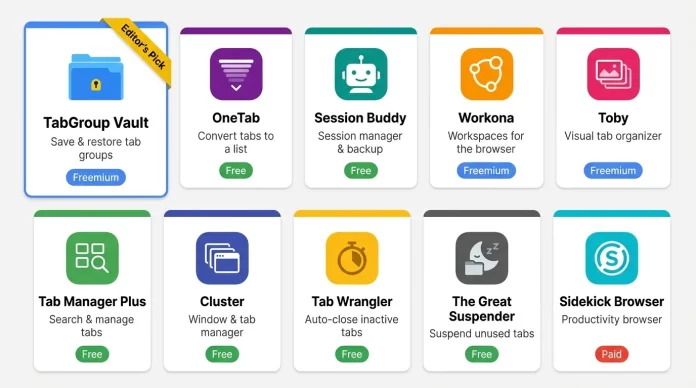
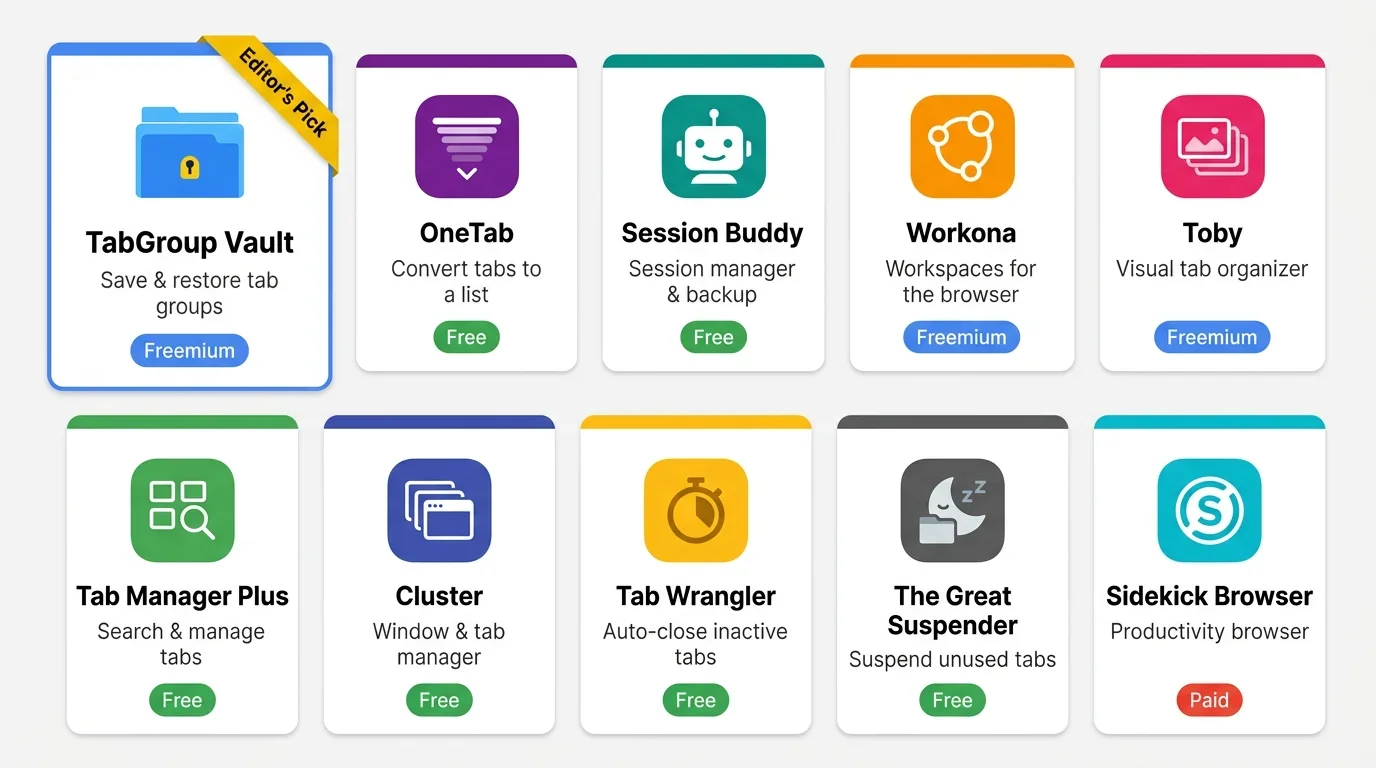
For remote workers, extensions that offer robust tab grouping and searching capabilities stand out as particularly useful. Tools that integrate seamlessly with Chrome’s own features enhance efficiency. Some popular choices include extensions that let you color code tab groups, save sessions, and invoke quick-search bars for finding tabs rapidly. Taking advantage of browser-native options alongside third-party tools can significantly enrich your tab management.
Comparing Features and User Reviews
Before settling on an extension, it’s wise to compare their key features and check user feedback. Look for extensions that receive consistent positive reviews related to stability, ease of use, and customer support. Pay attention to how updates are handled and whether any features you prioritize, like cross-device sync or AI-based organization, are included and well implemented. This comparative step ensures you invest in the best tool for your unique needs.
Step 3: Installing and Configuring Your Chosen Extensions
Guided Setup for Popular Tab Management Tools
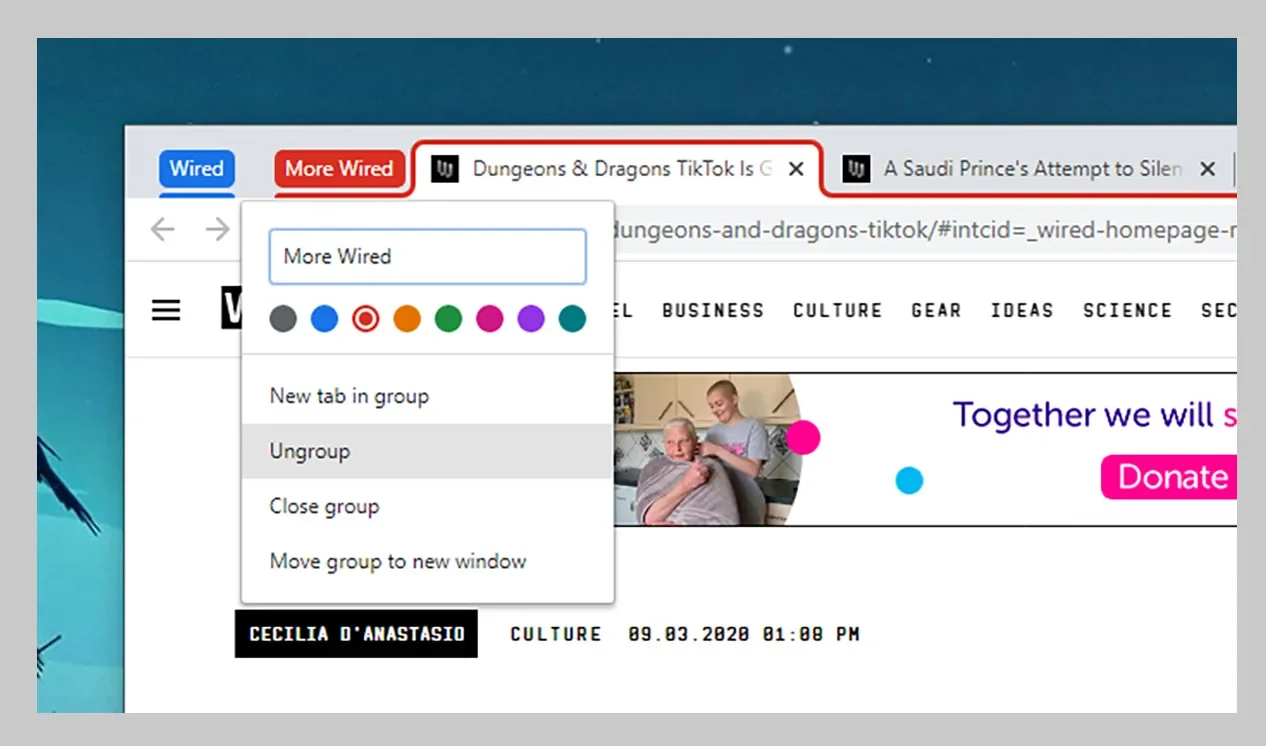
After selecting your preferred extension, follow the guided setup instructions carefully. Initial installation usually involves granting permissions for the extension to interact with your browser tabs. Many tools come with helpful walkthroughs or onboarding prompts to help users quickly understand their core functionalities and how to integrate them into everyday browsing habits.
Customizing Extension Settings for Optimal Workflow
Once installed, customize settings to match your workflow preferences. This may include enabling tab grouping by default, setting specific colors or labels, and configuring keyboard shortcuts for faster interaction. Some extensions also allow toggling features like session saving or automatic suspension of inactive tabs to improve performance. Tailoring these options aids in creating a personalized system that maximizes productivity.
Step 4: Creating an Effective Tab Organization System
Grouping and Labeling Tabs with Extensions
Begin organizing by grouping related tabs together. Chrome and Edge browsers enable users to right-click on tabs to create new groups or add to existing ones. Labeling these groups clearly allows for immediate recognition of their contents, helping you stay focused on particular tasks or topics. You can drag tabs in or out of groups, providing flexible and dynamic management as your work progresses.
Using Color Coding and Tab Suspension Features
Color coding groups provides visual cues that simplify navigation between tab clusters. Assigning distinct colors to different project categories or priorities can reduce confusion and speed up tab location. Additionally, some tools support suspending inactive tabs which lightens computer resource use, preventing slowdowns. Utilizing these features together helps maintain an organized and efficient browsing workspace.
Step 5: Maintaining and Updating Your Tab Organization
Regular Review and Cleanup Techniques
Organizing tabs is not a one-time task but an ongoing process. Schedule regular reviews to collapse or expand tab groups, close unneeded tabs, or reorder them based on changing priorities. Make use of features that allow you to restore accidentally closed groups or hide groups temporarily to reduce visual clutter. Continuous upkeep keeps your system functional and responsive to your evolving work demands.
Adapting Your System as Work Routines Change
Work patterns and projects naturally shift over time, so your tab organization system should remain flexible. Adjust group names, colors, and contents to suit new tasks or collaborations. Incorporate new extensions or features as they become available, especially AI-powered options that can automate routine organization. Keeping your approach adaptive ensures it stays aligned with your needs.
Additional Tips for Enhancing Remote Work Productivity
Complementing Tab Management with Browser Shortcuts
Mastering browser shortcuts can dramatically enhance tab management speed. Using combinations like Ctrl+Shift+A on Windows or Cmd+Shift+A on macOS opens a search bar for tabs, making it quick to find and switch between open pages. Selecting multiple tabs using Ctrl or Cmd keys allows batch operations like grouping or bookmarking, saving time and reducing repetitive tasks.
Utilizing Cloud Sync and Backup Features
Many browsers and extensions offer cloud synchronization, enabling tab groups and bookmarks to follow you across devices. This continuity is invaluable for remote workers who switch between multiple computers or mobile devices. Saving entire windows by bookmarking all tabs ensures that important research or workflows can be restored at any time, safeguarding against data loss and improving flexibility.


