
Understanding the Importance of Initial Page Load Time in WordPress
Why Speed Matters for User Experience and SEO
Imagine visiting a WordPress site that feels sluggish—the images take forever to appear, buttons lag, and the page seems to hang. In today’s fast-paced online environment, initial page load time is crucial. Users expect websites to load almost instantly; if it doesn’t, they often bounce away. From an SEO perspective, Google’s algorithm actively favors faster-loading sites, considering page speed a ranking factor. Slow load times not only frustrate visitors but also reduce your visibility in search results, directly impacting traffic and engagement.
How Initial Load Time Affects Conversion Rates
Consider an online store built on WordPress. When a customer lands on the homepage, the site needs to display the core content quickly to keep them interested. Reports show that even a one-second delay in page load time can reduce conversions by up to 7%. For WordPress themes packed with heavy CSS and complex plugins, this delay becomes even more pronounced. Reducing initial load time enables visitors to interact with the page sooner, increasing the chances of completing transactions, signing up for newsletters, or exploring further content.
What is Critical CSS and How It Works
Defining Critical CSS in Web Performance Optimization
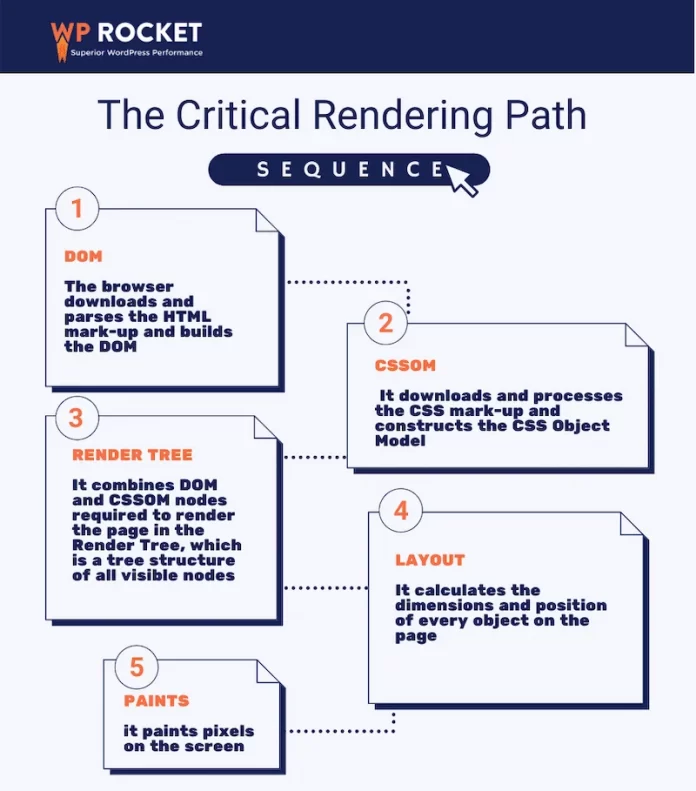
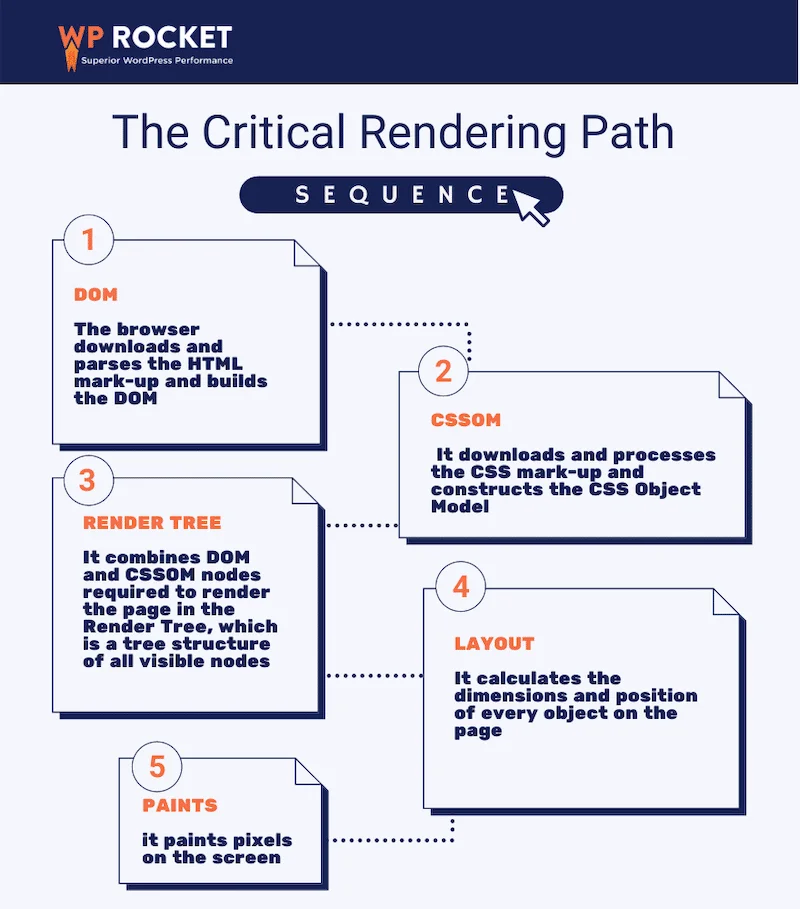
Critical CSS is the subset of CSS rules required to render above-the-fold (ATF) content—the portion of the webpage visible without scrolling. By loading only the styles necessary for this immediate view, a site can start rendering faster. This approach speeds up perceived load time because visitors see a visually complete page quicker. For WordPress themes, especially those with large CSS files coming from multiple plugins and page builders, critical CSS selectively prioritizes essential styles over the rest.
Difference Between Critical and Non-Critical CSS
Non-critical CSS encompasses styles for content below the fold or parts of the page not immediately visible to the user. These styles can be loaded later without negatively impacting the user experience. Without distinguishing between critical and non-critical CSS, WordPress sites often load entire style sheets in a blocking manner, delaying the initial render. In contrast, by delivering critical CSS inline or at the start, followed by the rest asynchronously, the page becomes interactive faster.
Methods to Extract and Implement Critical CSS in WordPress Themes
Manual Extraction vs Automated Tools
One common scenario involves a developer working on a heavily customized WordPress theme who decides to manually identify which CSS rules are essential for above-the-fold content. This hands-on method ensures precision but can be tedious and prone to human error, especially as the website evolves. Automated tools and services promise to generate critical CSS by analyzing the page, but they sometimes include unnecessary styles or miss key rules, resulting in visual glitches.
Popular Plugins for Critical CSS in WordPress
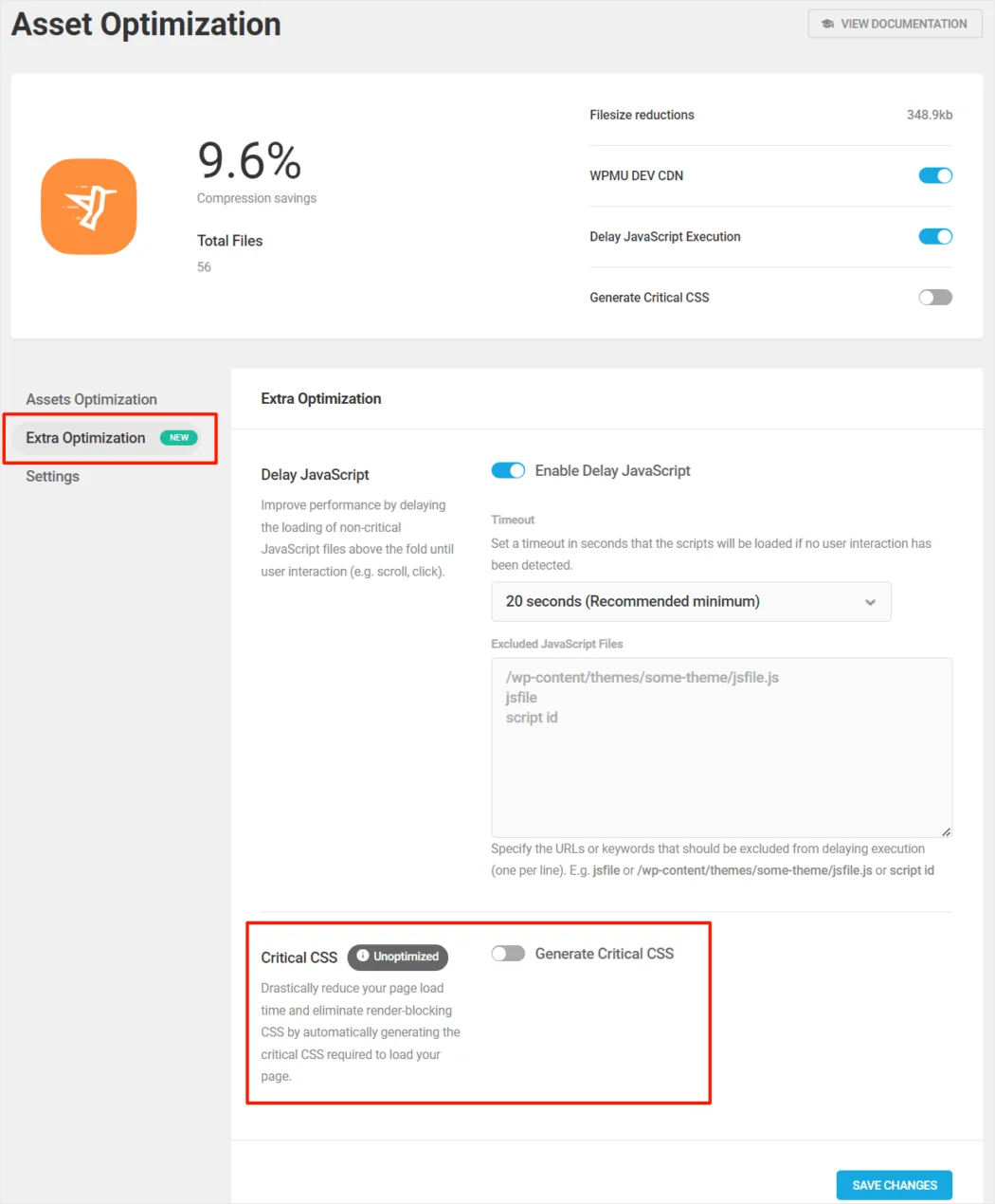
Fortunately, WordPress offers plugins like WP Rocket, Autoptimize, and Asset CleanUp that automate critical CSS generation and delivery. For example, WP Rocket allows site owners to extract and inline critical CSS while deferring non-critical styles, improving performance without requiring coding expertise. However, reliance solely on these tools can backfire if the autogenerated critical CSS misses important styles or if the total CSS size is already light, in which case critical CSS could add unnecessary complexity.
Step-by-Step Guide to Adding Critical CSS
For a practical approach, start by auditing your WordPress site with a speed testing tool such as PageSpeed Insights or GTmetrix to identify render-blocking CSS. Next, extract critical CSS either manually or with a trusted plugin. Inline this critical CSS in the page’s <head> section while deferring the loading of the remaining CSS files. Test the changes on a staging environment to avoid live site disruptions. Finally, verify the visual integrity of above-the-fold content before deploying the changes to production.
Best Practices for Optimizing CSS Delivery
Inlining Critical CSS
Inlining critical CSS directly into the HTML allows browsers to apply essential styles immediately without waiting for external stylesheet downloads. Yet, this approach should be used judiciously to avoid bloating HTML files. For WordPress websites with substantial CSS, inlining only truly critical rules avoids duplication and ensures the initial render is fast. Manual refinement here helps prevent common pitfalls like over-inlining or missing necessary selectors.
Defer or Async Loading for Non-Critical CSS
Once critical CSS is delivered, non-critical CSS can be loaded asynchronously or deferred to prevent blocking the render process. This can be done by adding attributes such as rel="preload" followed by switching to rel="stylesheet" after load, or by using specialized JavaScript loaders. While this technique speeds up initial rendering significantly, it requires careful implementation to avoid flashes of unstyled content (FOUC), especially in complex WordPress setups involving multiple plugins and themes.
Measuring the Impact of Critical CSS on Page Load Performance
Tools to Measure Above-the-Fold Load Speed
When improving CSS delivery, it’s essential to measure how well critical CSS works. Tools like Google Lighthouse and WebPageTest provide detailed insights into above-the-fold rendering speed and highlight any render-blocking resources. For example, a site owner can compare the First Contentful Paint (FCP) time before and after critical CSS implementation to quantify improvements and detect any layout shifts or broken styles.
Analyzing Before and After Implementation Results
A developer optimizing a WordPress theme once reduced initial CSS payload and implemented critical CSS manually. Benchmarking revealed FCP dropping from over 3 seconds to under 1.5 seconds on desktop. Yet, some mobile devices still experienced delayed rendering due to font-loading CSS being render-blocking. This highlighted the need to preload fonts and defer less critical styles further. Constant iteration and testing ensure that performance improvements translate into real user benefits without sacrificing visual quality.
Potential Challenges and Solutions When Using Critical CSS
Maintaining CSS Updates Without Breaking Layout
One common challenge arises when updating WordPress themes or plugins: new CSS rules may not be captured by existing critical CSS, leading to broken layouts above the fold. For instance, after a plugin update altered header styles, a site’s critical CSS was outdated, causing buttons to lose styling temporarily. To avoid this, regularly regenerate and test critical CSS, preferably in a staging environment, before pushing updates live.
Compatibility Issues with Theme and Plugin Updates
WordPress sites often combine multiple plugins and customizations, each injecting their own CSS. Some page builders add bulky CSS files that complicate crafting accurate critical CSS. Moreover, changes in theme structure may shift what is considered above-the-fold. In these cases, partial automation paired with manual review works best. Using performance-optimized themes like Astra or GeneratePress from the start can reduce such conflicts by minimizing render-blocking CSS and encouraging clean coding practices.
Future Trends in CSS Optimization for WordPress
Advancements in Browser Support for CSS Loading
Browsers are evolving with better native support for loading CSS resources non-blockingly. Features such as rel="preload" and rel="prefetch" are becoming standard, enabling sites to hint which styles are critical without blocking content rendering. In the near future, WordPress themes may leverage these browser capabilities automatically, reducing the need for complex manual or plugin-based workarounds.
The Role of Modern Build Tools in Automating Critical CSS
Modern JavaScript module bundlers like Webpack and Parcel are increasingly integrated into WordPress development workflows. They allow developers to split CSS intelligently and extract critical styles during the build process. For instance, a theme developer might configure Webpack to output a minimal critical CSS file for the homepage and defer other CSS chunks. This automation reduces human error, streamlines updates, and ensures consistent performance improvements as the site grows.


