Introduction to Laptop Battery Health Testing
Why Monitoring Battery Health Matters
Your laptop’s battery is its lifeline when you need portability and freedom from power outlets. Over time, that battery naturally loses some of its capacity and efficiency, which can lead to shorter usage between charges and unexpected shutdowns. Monitoring your battery’s health isn’t just about avoiding inconvenience; it’s crucial for maintaining the device’s overall performance and safety. A failing battery can sometimes swell or malfunction, creating risks that shouldn’t be ignored. Staying ahead by regularly checking battery health means you can plan replacements and avoid disruptions.
Overview of Built-In Hardware Diagnostics Tools
Fortunately, most modern laptops come with built-in diagnostics tools that make assessing battery condition straightforward. These tools tap directly into the hardware, giving you accurate insights without the need for external apps. Whether you own a Windows PC or a Mac, the laptop often includes utilities to check things like battery capacity, cycle count, and overall health status. These diagnostics provide a detailed snapshot that helps you understand how much life your battery has left and if it’s functioning as expected.
Preparing Your Laptop for Battery Diagnostics
Ensuring Proper Laptop Settings
Before diving into battery diagnostics, it’s important to set the stage. Make sure your laptop is running on battery power rather than plugged in during testing, as this can influence the readings. Closing unnecessary applications and avoiding tasks that generate excessive heat will also help get the most accurate results. Some laptops may require disabling certain power-saving modes temporarily to provide a clearer picture of battery performance.
Updating BIOS and Diagnostic Software
Outdated BIOS versions or diagnostic utilities can cause inaccurate test results or prevent access to the most current battery data. Check your laptop manufacturer’s support site for BIOS updates or software patches related to hardware diagnostics. Applying these updates can improve the precision of your battery health reports and fix bugs that might cause misinterpreted results. Staying up to date ensures your diagnostics tool is working with the latest technology standards.
Step-by-Step Guide to Using Built-In Diagnostics
Accessing Diagnostic Mode on Different Laptop Brands
The way to access built-in battery diagnostics varies by brand. On many Dell laptops, pressing a specific key like F12 during startup brings up a diagnostics menu. HP laptops often include a hardware diagnostics option accessible via their support assistant software or during boot. Lenovo users can tap the Novo button or press F10 at startup. Apple’s MacBooks provide battery condition details within system preferences under the battery section. Knowing these brand-specific methods helps you reach the battery health tools quickly.
Running Battery Health Tests
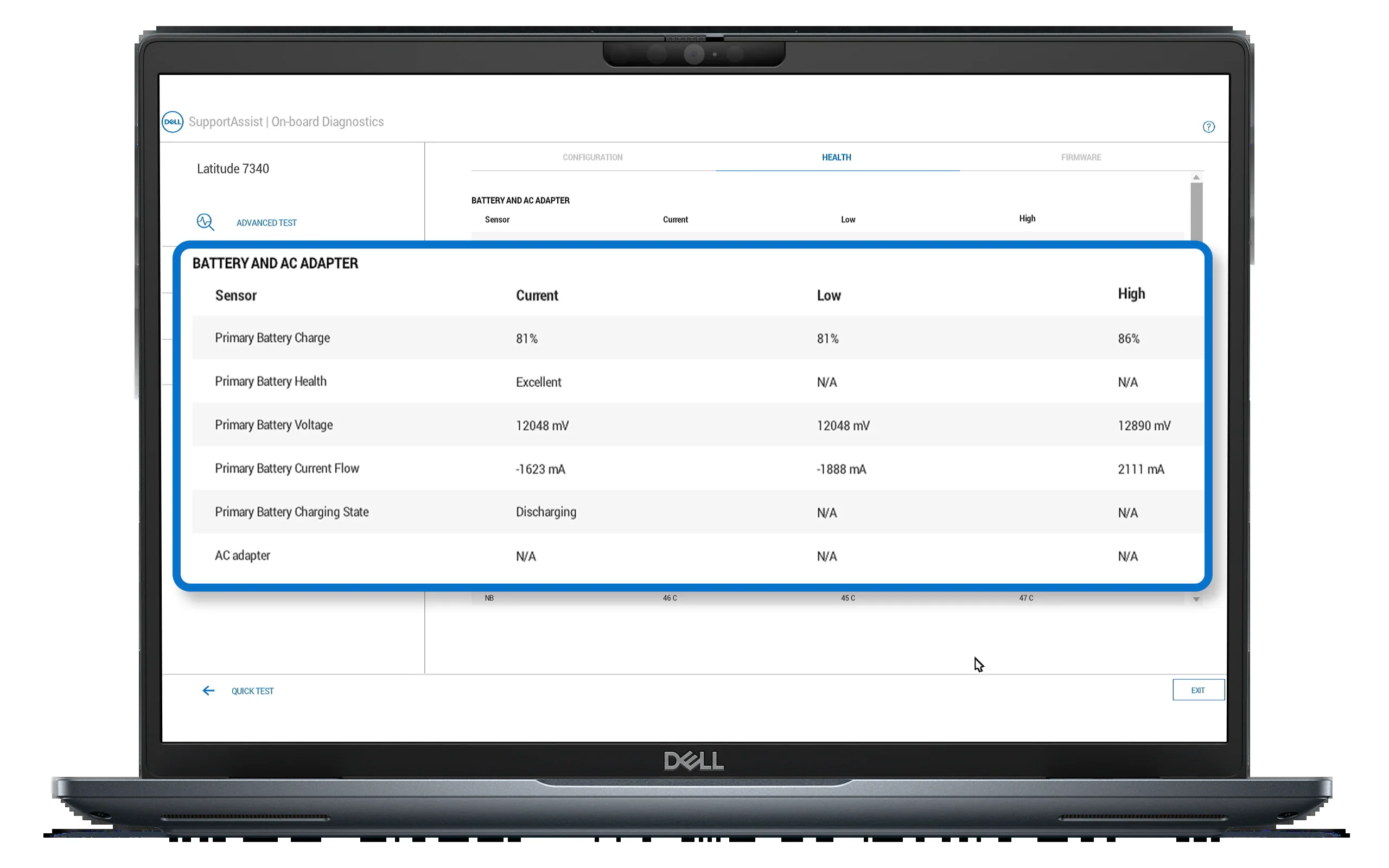
Once in the diagnostic environment, you’ll generally find an option labeled “Battery Health,” “Battery Test,” or something similar. Initiate the test, which usually takes a few minutes as the tool measures capacity, cycle count, and any potential errors. Be patient and avoid interrupting the process. The diagnostic will report on how well the battery holds charge compared to its maximum design capacity, highlighting any issues that might indicate degradation or other problems.
Interpreting Diagnostic Results
Understanding the results is key. A significant drop in full charge capacity compared to the original design capacity suggests your battery is wearing out. Cycle count also reveals usage history—batteries are rated to last a certain number of charge cycles before noticeable decline. Some tools highlight abnormalities like rapid discharging or failure to hold a charge, which can stem from internal wear or temperature damage. Keeping an eye on these metrics allows you to identify when the battery’s performance has dropped below an acceptable threshold.
Common Battery Issues Identified by Diagnostics
Capacity Degradation
Over time and use, a laptop battery’s ability to hold a full charge diminishes. Diagnostics often reveal that the maximum charge capacity has shrunk, sometimes dramatically. This is a natural result of the chemical processes inside the battery wearing down with each charge and discharge cycle. While some capacity loss is expected, an accelerated drop may indicate improper usage habits or environmental factors.
Charging and Discharging Anomalies
Diagnostics can also catch unusual charging patterns, such as rapid battery drain or failure to reach full charge. These issues might be caused by software glitches, damaged charging circuits, or deteriorated battery cells. Detecting them early helps in troubleshooting and prevents unexpected shutdowns or data loss during critical tasks.
Temperature-Related Battery Problems
Heat is a major enemy of battery longevity. Diagnostics may report warnings if the battery has been exposed to high temperatures, which accelerates chemical degradation inside cells. Consistent high-temperature operation or charging can even lead to physical issues, including battery swelling, a serious safety concern. Recognizing temperature-related damage early enables you to take corrective steps to protect your laptop and yourself.
Best Practices for Accurate Battery Health Testing
Preparing Your Battery and Environment
For the most reliable diagnostics, test your battery under moderate conditions. It’s best to keep your battery charge between 20% and 80% before testing, avoiding extremes that could skew readings. Conduct your tests in a cool, dry environment to prevent temperature-related interference. Also, avoid running heavy applications during diagnostics to minimize heat and power fluctuations.
Frequency of Testing and Monitoring Trends
Battery health doesn’t change overnight, so regular testing every few months is sufficient for most users. However, if you notice any unusual battery behavior or if your usage patterns change, consider more frequent checks. By monitoring trends over time, you gain valuable insight into how quickly your battery is degrading, allowing proactive maintenance or timely replacement.
Next Steps After Diagnostics
When to Replace Your Battery
Diagnostics results can guide your decision on replacement. If the battery capacity has dropped below about 60-70% of the original, or if the device shows frequent unexpected shutdowns, it’s time to start thinking about a new battery. Likewise, any indication of swelling or physical damage means you should stop using the battery immediately and replace it to avoid safety risks.
Optimizing Battery Life Post-Diagnosis
After testing, proper battery care is essential to extend its useful life. Try maintaining a charge range between 20% and 80% to slow degradation and avoid frequent deep discharges. Activating smart charging features, if available, helps manage optimal charge levels automatically. Also, never expose your laptop to high temperatures during use or charging and store it partially charged when not in use for long periods.
Advanced Tips and Tools Beyond Built-In Diagnostics
Third-Party Battery Health Applications
While built-in tools provide solid baseline information, third-party applications can add value with more detailed analytics and user-friendly interfaces. Apps like BatteryCare, HWMonitor, or coconutBattery for Mac give insights into battery wear level, temperature history, and charging habits. These tools can help you make informed decisions and improve your charging routines.
Using Command Line Tools for Deep Diagnostics
For Windows users, advanced diagnostics are also accessible via command line. The command powercfg /batteryreport generates a comprehensive HTML report detailing your battery’s usage, capacity, and recent cycles. This report highlights critical data points such as installed battery info, recent usage patterns, and capacity trends. Combining this with built-in tests offers a thorough understanding of your battery’s condition.