Understanding the Need for Migration
When and Why to Migrate Your WordPress Site
Migrating a WordPress site becomes necessary when the current hosting environment no longer meets your website’s performance, reliability, or support needs. Common reasons include seeking faster load times, more robust security, better customer service, or cost savings. Additionally, you might need to migrate if your current host is limiting your website’s growth or if you want to consolidate multiple sites under one provider. Migration is also crucial when your domain subscription is tied to a host you want to move away from, requiring domain transfer alongside site migration.
Risks and Challenges to Consider
Moving a WordPress site involves technical complexities that can cause downtime, broken links, or data loss if not handled carefully. Large websites risk migration failures or timeouts during transfer. Different hosting environments may have varying configurations causing compatibility issues. Common challenges include internal links pointing to the old domain after migration, permalinks not functioning as expected, and delays in DNS propagation. Understanding these risks upfront helps prepare for a smooth transition without impacting user experience.
Pre-Migration Preparation
Choosing the Right Hosting Provider
Selecting a new host that aligns with your site’s requirements is vital. Look for providers with strong customer support, reliable uptime guarantees, and features compatible with WordPress. Hosts that offer automatic migration assistance can simplify the process. Ensure the new environment supports necessary PHP versions and databases as your existing site demands. Also, confirm their policies regarding domain transfers if your domain subscription is active on the current host.
Backing Up Your Entire Website Safely
Before initiating migration, create comprehensive backups of your WordPress files and database. This safety net will protect you in case of errors during transfer. Compressing the wp-content folder can make transferring large media libraries more manageable. Download both files and database via tools like phpMyAdmin or FTP clients, storing backups in a secure location. Maintaining multiple backup copies is essential to prevent accidental loss.
Listing All Necessary Credentials and Details
Gather all login details and technical information required for both hosting accounts. This includes FTP credentials, database usernames and passwords, phpMyAdmin access, and domain registrar information. Keeping these details organized before starting ensures a smooth workflow and avoids delays caused by missing information during critical migration steps.
Step 1: Setting Up the New Hosting Environment
Installing WordPress on the New Server
Start by installing a fresh WordPress setup on your new host. Most providers offer easy one-click installation tools for WordPress. Installing a clean version before importing your existing site data establishes the necessary file structure and database tables. This step lays a foundation for importing your backed-up content securely.
Configuring PHP and Database Settings
Adjust PHP settings to match or exceed your old host’s configurations, optimizing compatibility and performance. Make sure the database server is ready and create a new database for your WordPress installation. Note the database name, username, and password so you can link them correctly later. Proper configuration at this stage minimizes issues when importing your old data.
Step 2: Migrating WordPress Files and Database
Exporting Your Database from the Old Host
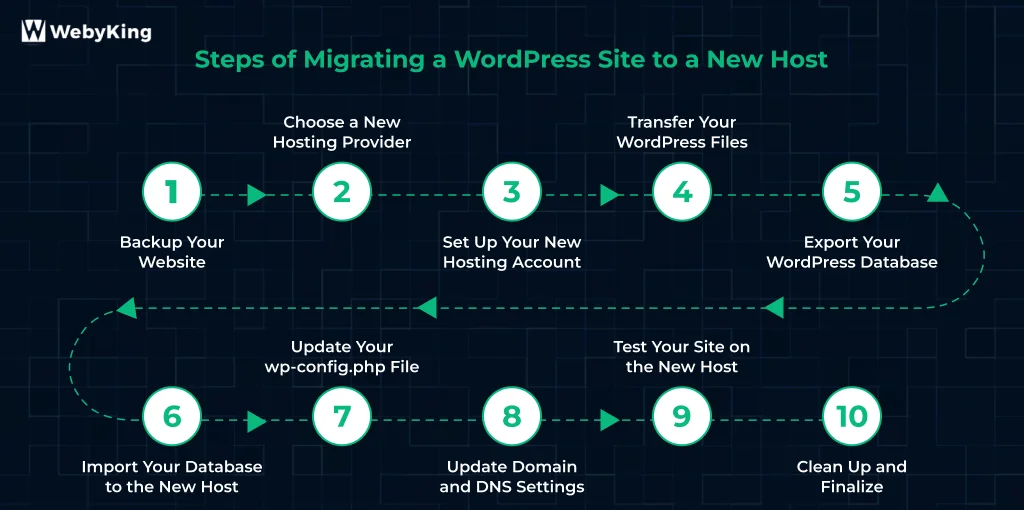
Use phpMyAdmin or similar database management tools to export your WordPress database. This creates a copy of all your posts, pages, comments, and settings. Exporting as an SQL file is standard. If your database is very large, consider splitting it or using specialized tools to prevent timeouts and errors.
Importing the Database to the New Host
Upload the SQL file into the new database through phpMyAdmin or hosting control panels. During import, monitor for any errors and ensure the process completes successfully. If your domain URL has changed, plan to update all references to your new site address in the database after import.
Transferring WordPress Files via FTP or File Manager
Transfer your WordPress files from the old server to the new one, focusing especially on the wp-content folder containing themes, plugins, and media. Use FTP clients or your hosting provider’s file manager for this task. After uploading, double-check that all files are intact and permissions are correctly set to avoid functionality issues.
Step 3: Updating Configuration Settings
Editing wp-config.php for New Database Details
The wp-config.php file controls your WordPress installation’s connection to the database. Update this file with the new database name, username, password, and host information to establish a successful link. Incorrect details here will prevent your site from loading.
Adjusting Site URLs and Permalinks
After migration, update the site URLs to reflect the new domain if it has changed. Use WordPress settings or run search-replace commands on the database to replace old URLs with new ones. Adjust permalinks within WordPress settings to prevent broken links and improve SEO. Plugins like Better Search Replace or Velvet Blues can automate URL updates efficiently.
Step 4: Testing the New Setup Thoroughly
Checking Site Functionality and Performance
Test every aspect of your website on the new hosting environment before updating DNS. Check loading speed, navigation, media display, and plugin functionality. Verify contact forms, checkout processes, and other interactive elements. Conducting thorough tests reduces the risk of visitors experiencing issues after migration.
Resolving Common Migration Issues
Address common problems such as broken internal links, missing images, and permalink errors promptly. Reinstall or update plugins if necessary. Review error logs for clues. If domain subscriptions are active on the old host, ensure domain transfer procedures are underway, including unlocking the domain and obtaining the EPP code.
Finalizing the Migration
Pointing Your Domain to the New Server
Once testing confirms the new site is ready, update your domain’s DNS records or nameservers to point to the new hosting provider. This step directs visitor traffic to your new server. Keep in mind that DNS propagation can take hours to days, during which visitors may see either the old or new site.
Monitoring DNS Propagation and Site Behavior
Monitor your site actively during DNS propagation to catch any unexpected downtime or errors. Use tools to check propagation status and access logs for unusual activity. Continue serving the site from the old host until propagation fully completes, minimizing downtime risk.
Post-Migration Maintenance Tips
Clearing Caches and Optimizing for Speed
After migration, clear all caches to ensure visitors see the latest version of your site. This includes WordPress caching plugins, CDN caches, and browser caches. Optimize your site’s performance by checking image sizes, enabling compression, and reviewing plugin performance.
Creating a New Backup on the New Host
Once your site is stable on the new host, create fresh backups of both files and database. This backup acts as a recovery point in case future changes cause issues. Store this new backup securely and consider setting up regular automated backups for ongoing protection.